Skip to content
Accounting

Financial Reports

Accounting

Financial Reports

Generate and interpret the Profit & Loss, Balance Sheet, Cash Flow Statement, and key management reports in Odoo Accounting.

6 steps Updated Mar 7, 2026 SOP · Standard

Odoo generates the three core financial statements automatically from your posted transactions. This guide covers reading and interpreting the Profit & Loss, Balance Sheet, and Cash Flow Statement — plus management reports like Aged Receivable and Aged Payable that drive day-to-day cash management.

1

Profit & Loss Statement

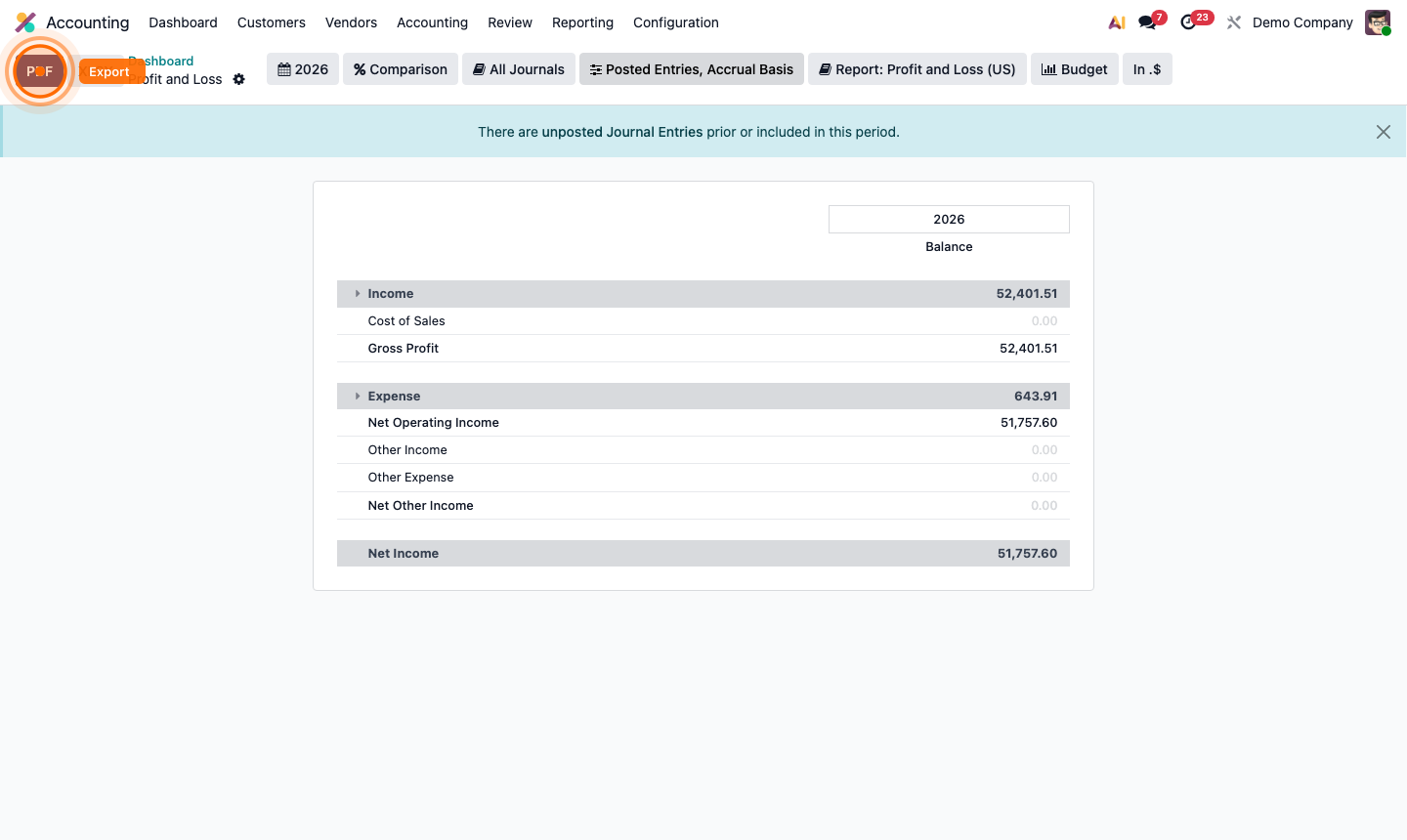
Go to Accounting → Reporting → Profit and Loss.

The P&L shows your income and expenses for a period, resulting in a net profit or loss.

Structure:

  • Revenue — all income accounts (sales, other income)
  • Cost of Revenue — direct costs (COGS)
  • Gross Profit = Revenue – COGS
  • Operating Expenses — indirect costs (salaries, rent, marketing)
  • Net Profit = Gross Profit – Operating Expenses

Use the date filter at the top to change the reporting period (month, quarter, year). Click Comparison to add a comparison period alongside.

Click any line amount to drill into the underlying journal entries.
Step 1: Profit and Loss report showing revenue, COGS, gross profit, and operating expenses

2

Balance Sheet

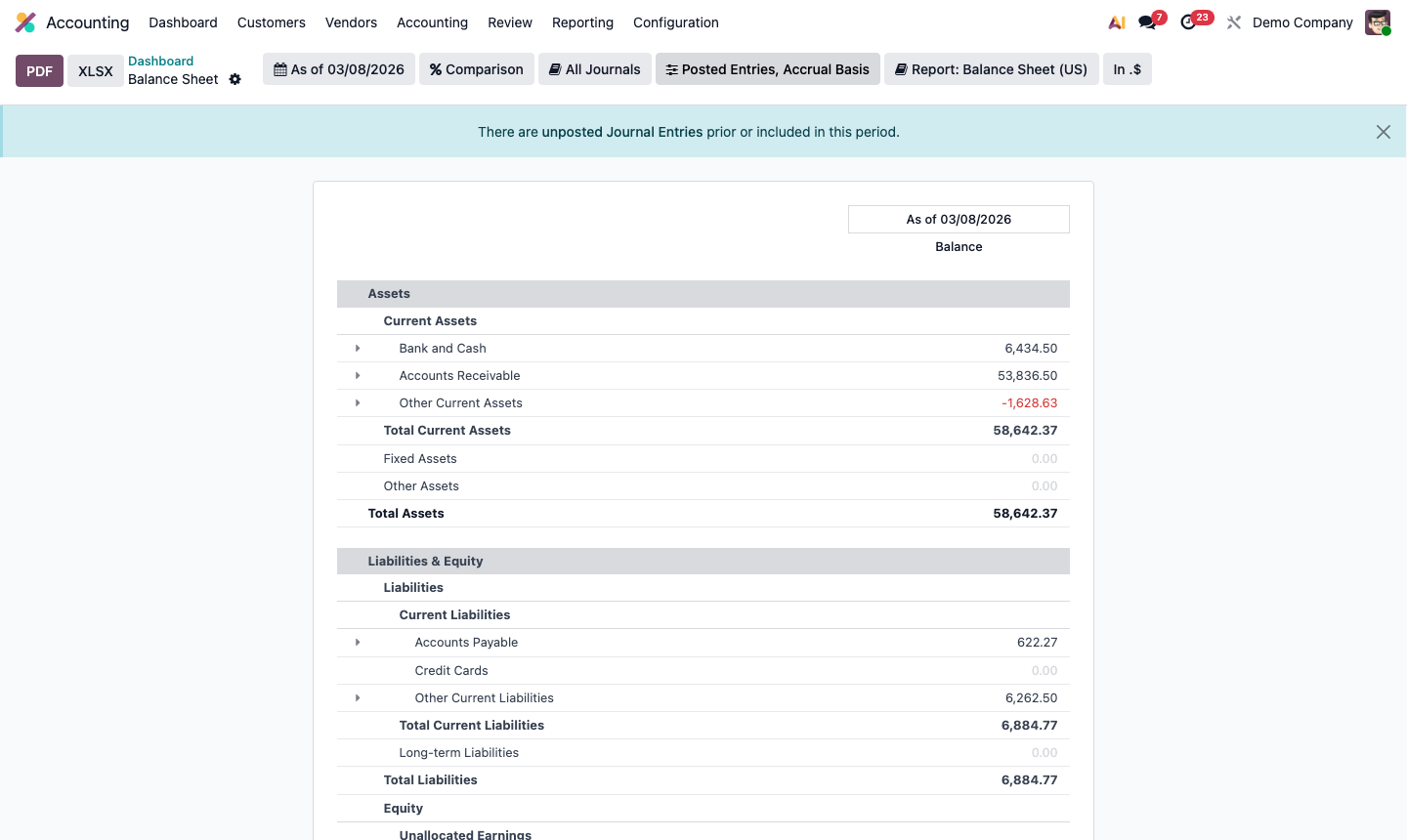
Go to Accounting → Reporting → Balance Sheet.

The Balance Sheet shows what your business owns (Assets), owes (Liabilities), and the difference (Equity) at a point in time.

Key sections:

  • Current Assets — cash, receivables, inventory (liquidatable within 1 year)
  • Non-Current Assets — fixed assets, long-term investments
  • Current Liabilities — payables, short-term debt (due within 1 year)
  • Non-Current Liabilities — long-term loans
  • Equity — paid-in capital + retained earnings

The fundamental equation: Assets = Liabilities + Equity. If this doesn’t balance, there are unposted or incorrectly posted entries.

Step 2: Balance sheet report showing assets, liabilities, and equity sections with totals

3

Cash Flow Statement

Go to Accounting → Reporting → Cash Flow Statement.

The Cash Flow Statement shows where cash came from and where it went — regardless of accrual accounting entries. It has three sections:

  • Operating Activities — cash from normal business operations (net income adjusted for non-cash items)
  • Investing Activities — cash from buying/selling assets
  • Financing Activities — cash from loans, equity investment, or debt repayment

Net Change in Cash = Operating + Investing + Financing

A profitable business can still have negative cash flow if receivables are not collected or inventory is building up. The Cash Flow Statement reveals this.

Step 3: Cash flow statement showing operating, investing, and financing activities with net change

4

Aged Receivable Report

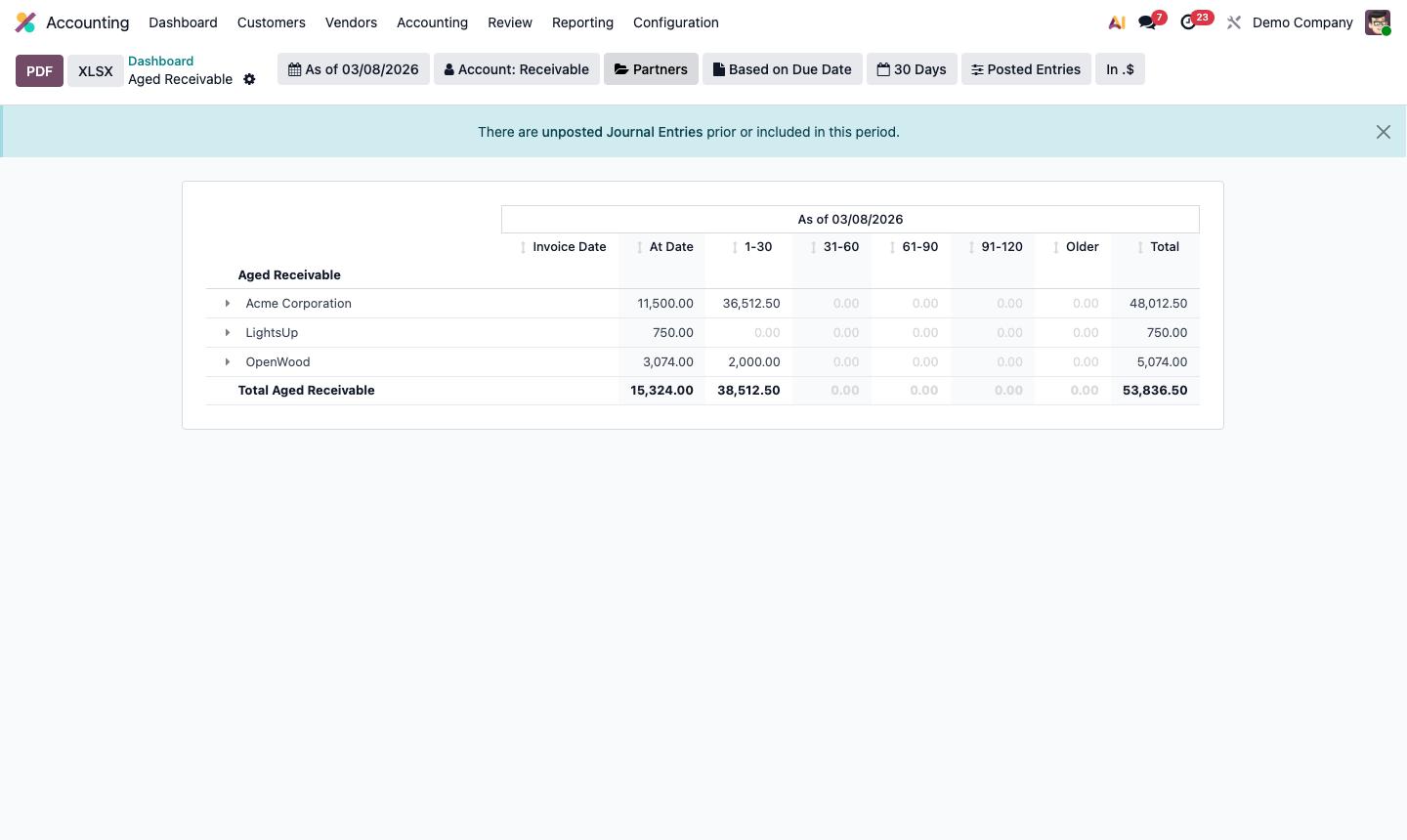
Go to Accounting → Reporting → Aged Receivable.

This is your most important AR management report. It shows all outstanding customer invoices bucketed by age:

  • Not Due — invoices not yet past their payment terms
  • 1-30 days overdue
  • 31-60 days overdue
  • 61-90 days overdue
  • 90+ days overdue (high risk of bad debt)

Sort by Total to prioritise collection efforts on the largest outstanding balances. Click any customer row to see the individual invoices.

Use this report weekly with your AR team — a standing “collections meeting” reviewing the 30+ day overdue column prevents bad debt from accumulating.

Step 4: Aged receivable report showing customer balances by aging bucket with totals per column

5

Tax Report

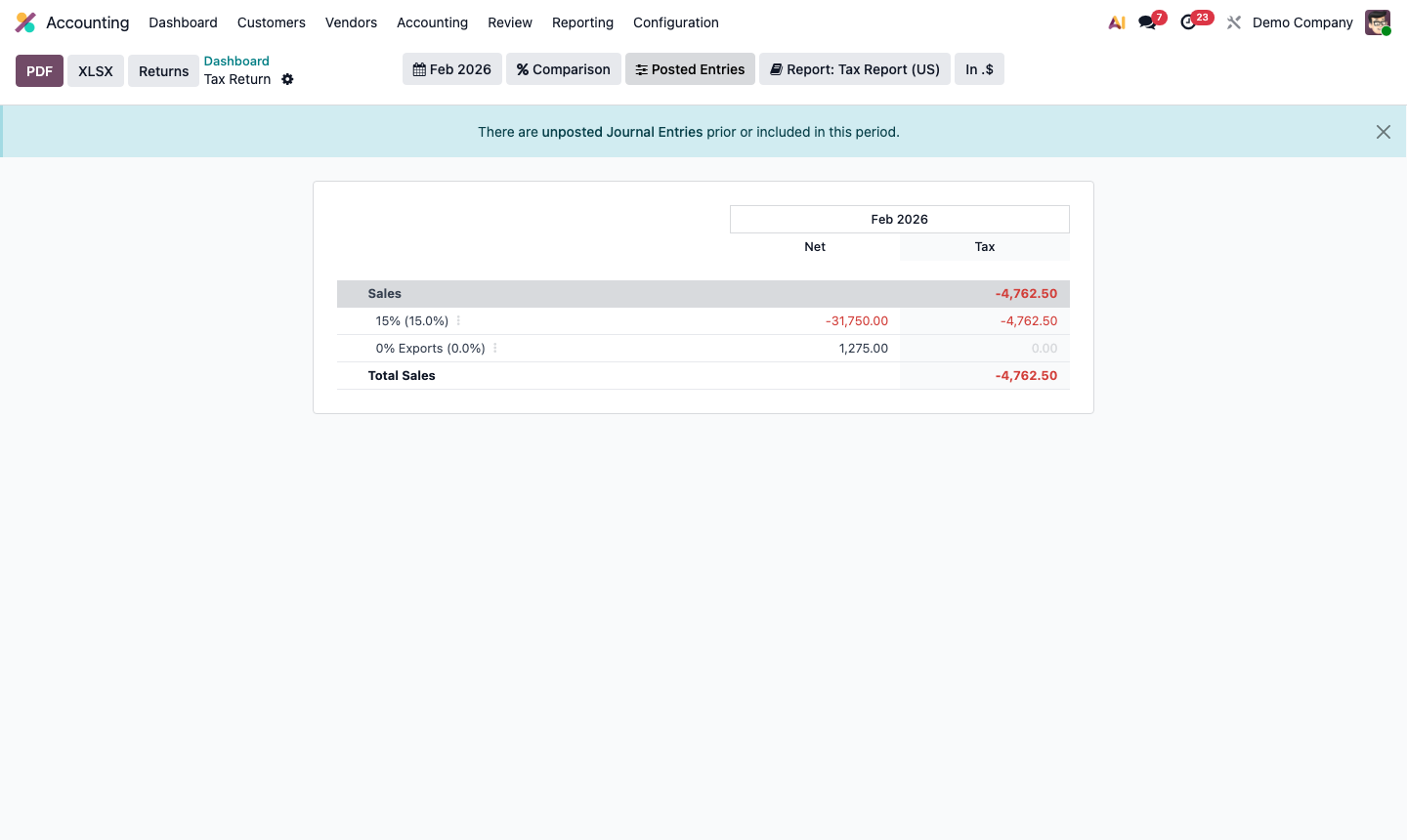
Go to Accounting → Reporting → Tax Report (or Tax Return depending on your localisation).

This report aggregates all tax lines for a period, showing:

  • Output tax — VAT/sales tax collected on customer invoices
  • Input tax — VAT/sales tax paid on vendor bills
  • Tax due = Output – Input

The report groups by tax code, matching the lines of your official tax return. Use the date filter to select the period you’re filing for.

Click Export to generate the report in a format suitable for your tax authority, or use Generate Journal Entry to post the tax payment/refund entry directly.

Step 5: Tax report showing output tax, input tax, and net tax due per tax code for the period

6

Customise and Export Reports

All financial reports in Odoo support:

Customisation:

  • Add/remove columns (e.g., add a “Budget” column in P&L for variance analysis)
  • Change date ranges
  • Filter by journal, analytic account, or branch

Export options:

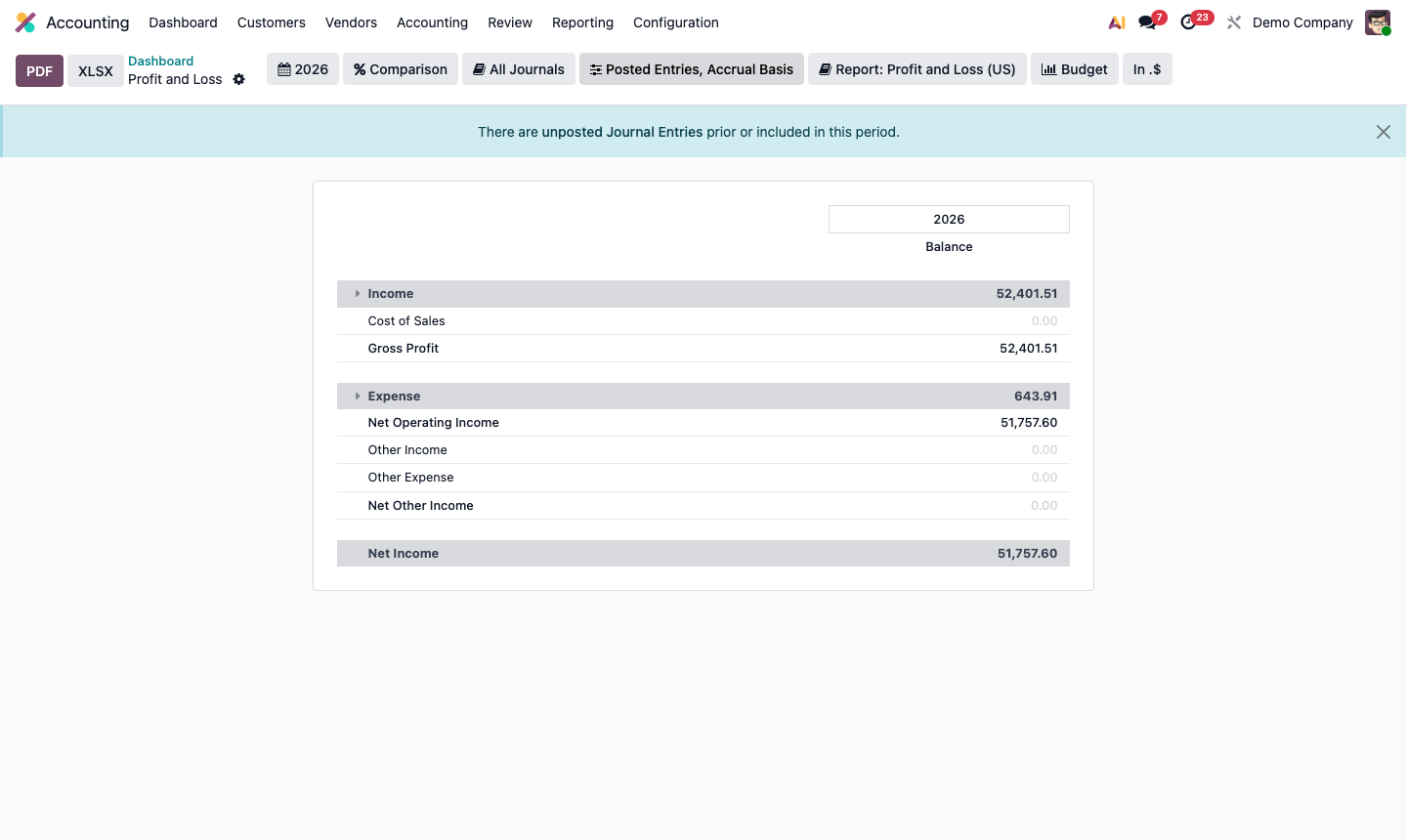
  • PDF — formatted report suitable for printing or sending to your accountant
  • Excel — raw data for manipulation
  • XBRL — structured format for regulatory filings (available in some localisations)

Annotate and save:

  • Add commentary notes to lines for management accounts
  • Save a custom report configuration as a favourite view

Step 6: Financial report export dialog showing PDF, Excel, and XBRL format options