Skip to content
CRM

Activities & Follow-ups

CRM

Activities & Follow-ups

Schedule calls, emails, and meetings on opportunities, manage your activity queue, and never miss a follow-up.

6 steps Updated Mar 7, 2026 SOP · Standard

Activities are Odoo’s structured follow-up system. Every sales action — a call to make, an email to send, a meeting to hold — can be scheduled as an activity on an opportunity, ensuring nothing falls through the cracks. This guide shows how to use them effectively.

1

Understand Activity Types

Odoo ships with standard activity types:

  • Email — reminder to send an email
  • Phone Call — reminder to call
  • Meeting — creates a Calendar event
  • Document — reminder to upload a document
  • Upload Document — for document requests via the portal

Each type has a default deadline (e.g., Phone Call = 1 day, Meeting = 10 days) that can be customised.

Go to CRM → Configuration → Activity Types (with developer mode) or Settings → Technical → Activity Types to create custom types — e.g., “LinkedIn Outreach”, “Demo Scheduled”, “Contract Review”.
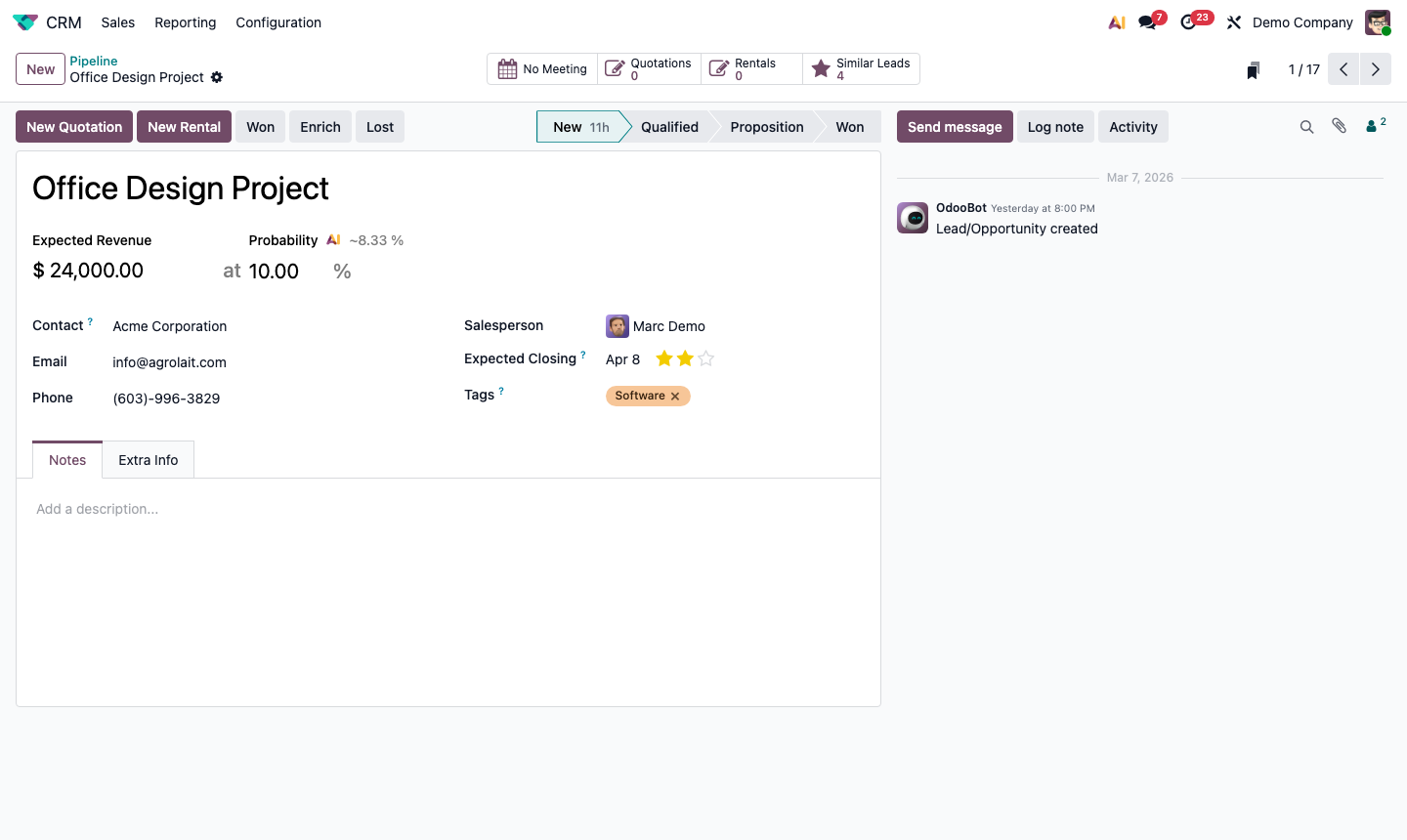
Step 1: Activity types list showing Email, Call, Meeting types with deadlines

2

Schedule an Activity on an Opportunity

Open any opportunity. In the chatter (right side), click ActivitiesSchedule an Activity.

In the dialog:

  • Activity Type — select Call, Email, Meeting, etc.
  • Summary — a short title visible on the Kanban card (e.g., “Send pricing proposal”)
  • Due Date — when this must be done by
  • Assign to — defaults to yourself; reassign to a colleague if needed
  • Notes — context or talking points

Click Schedule. An activity indicator (coloured icon) appears on the opportunity’s Kanban card.

Step 2: Schedule activity dialog on an opportunity with type, date, and notes fields

3

Work Through Your Activity Queue

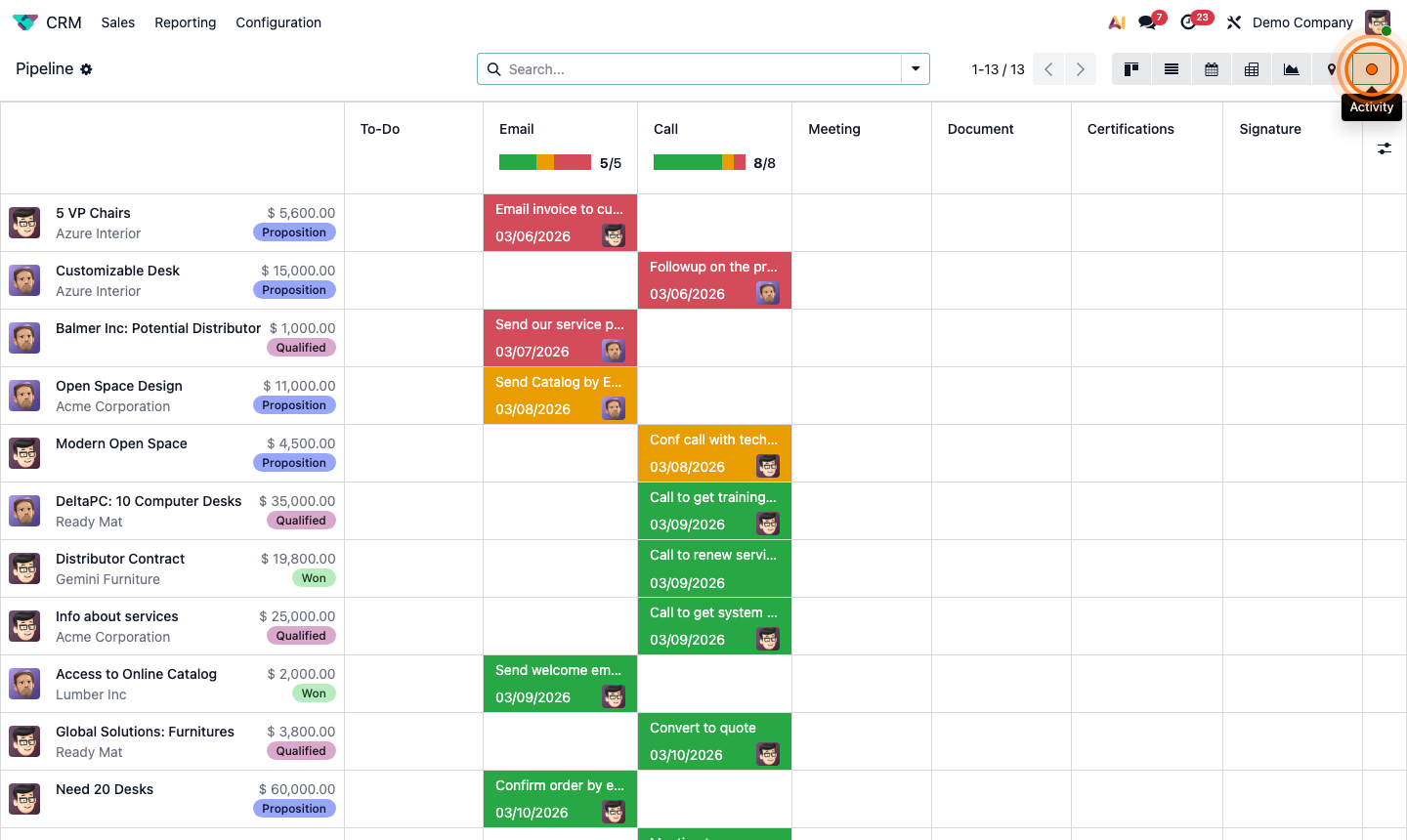
Your daily activity queue is your most important CRM view.

Click Activities in the CRM top menu (or use the global activity icon in the top bar).

This shows all your scheduled activities sorted by due date. For each activity:

  • Mark Done — logs it in the chatter and optionally schedules the next activity
  • Edit — change the due date or reassign
  • Cancel — remove the activity without logging it

Pro workflow: Start each morning with the activity queue. Work through overdue and today’s activities before checking email.

Step 3: CRM activity list view showing due activities with Mark Done, Edit, and Cancel actions

4

Log Calls and Meeting Outcomes

After completing a call or meeting, log the outcome to keep the opportunity history complete.

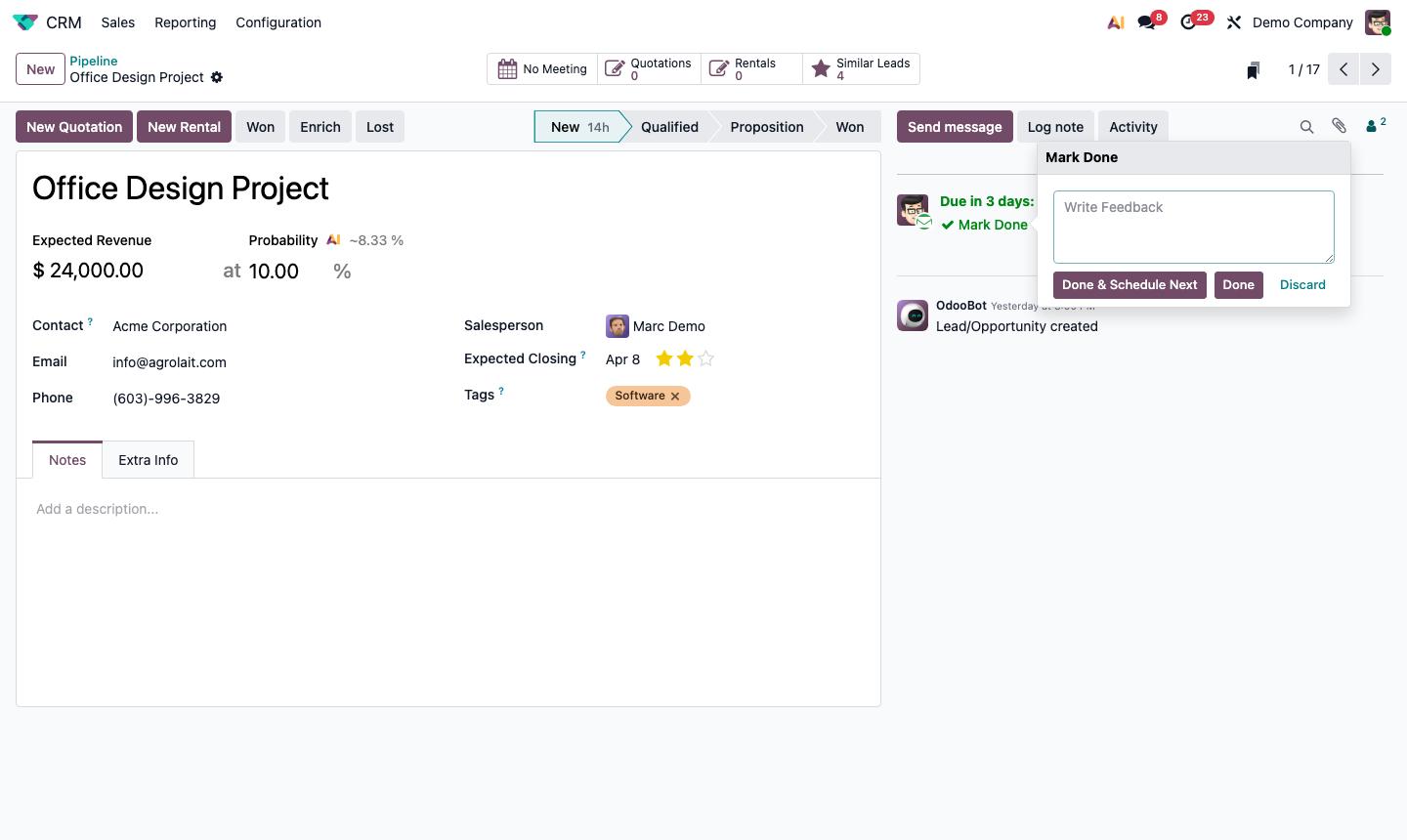
Click Mark Done on the activity. A dialog prompts for:

  • Feedback — what happened? Key takeaways?
  • Schedule Next Activity — immediately schedule the follow-up step

The feedback is posted as a log note in the chatter with the activity type, completion date, and your text.

For meetings specifically: when you click a Meeting activity, it opens the Calendar event. After the meeting, add notes in the event description — these sync back to the opportunity chatter.

Step 4: Mark done dialog with feedback text field and next activity scheduling

5

Send Emails Directly from an Opportunity

You can send tracked emails directly from the opportunity without leaving Odoo.

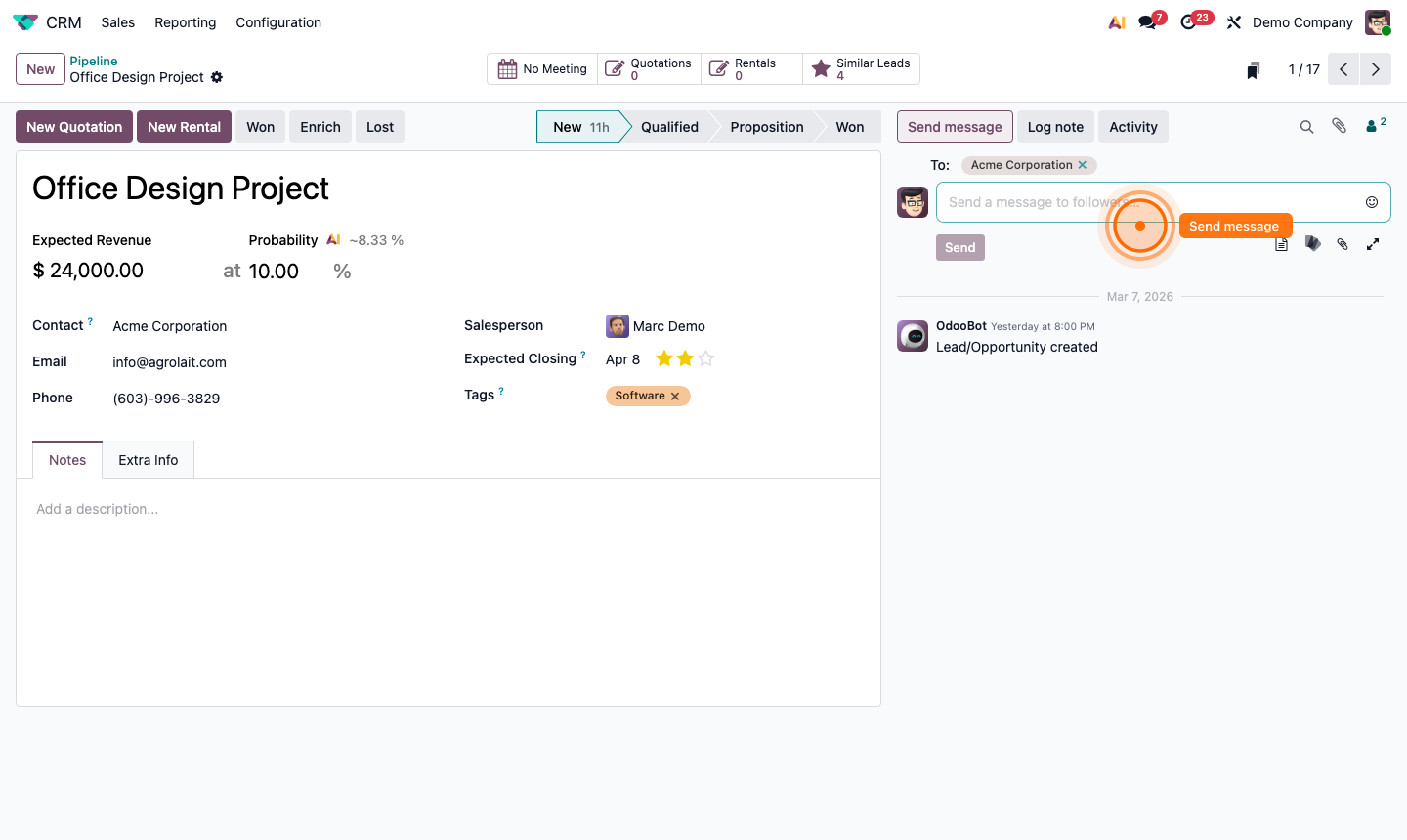
In the chatter, click Send Message.

  • To — defaults to the customer; add more recipients
  • Subject — auto-filled from the opportunity name
  • Body — compose your email with formatting tools
  • Attach files — drag & drop or browse
  • Use a Template — click the template icon to insert a pre-written email

Sent emails appear in the chatter timeline. If the customer replies, the reply threads back into the chatter automatically (requires incoming mail configured).

Step 5: Send message panel on opportunity chatter with email compose fields and template option

6

Set Up Automated Follow-up Reminders

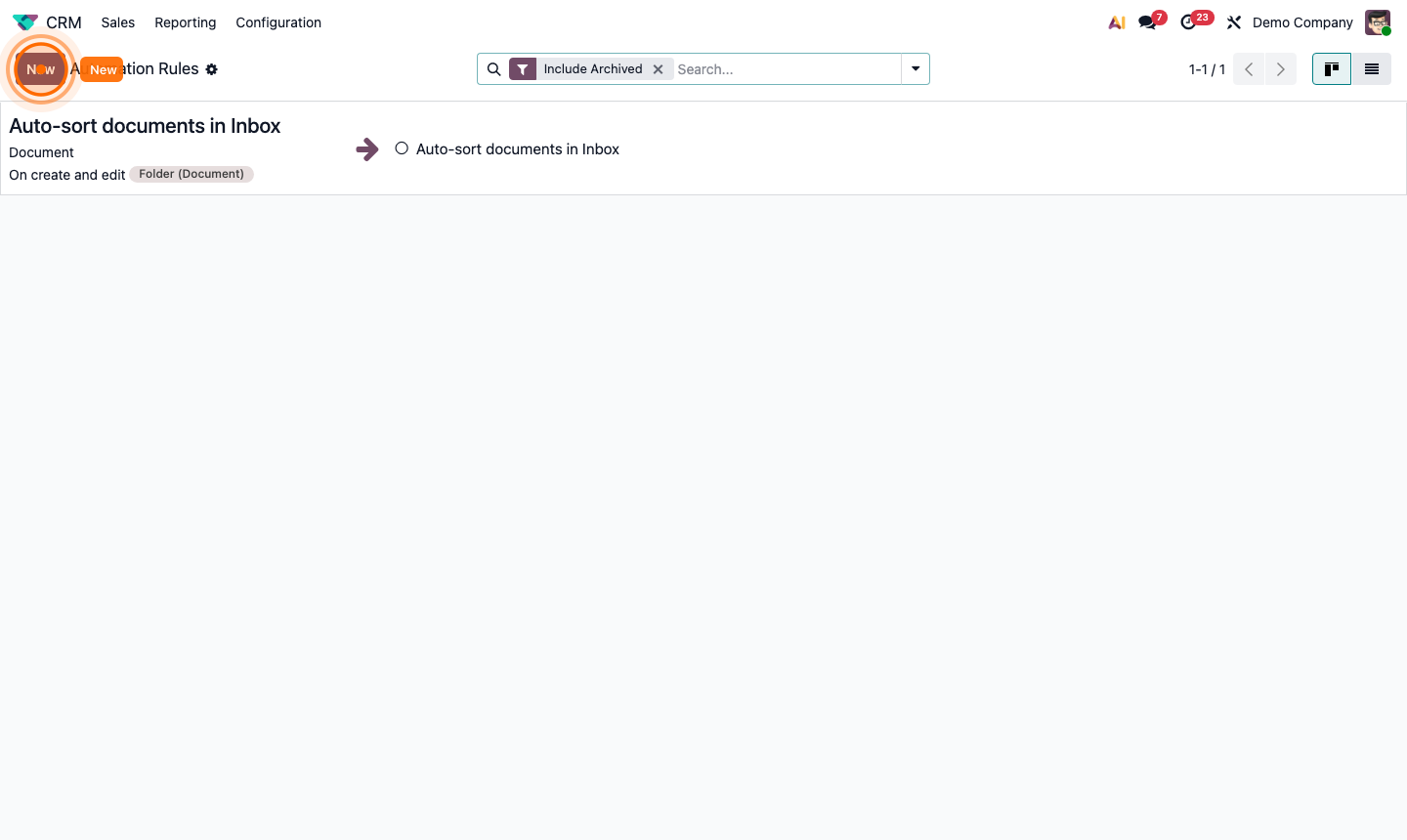
For systematic follow-up across the team, use CRM → Configuration → Lead Mining and Automated Actions.

Create an automated action (Settings → Technical → Automation):

  • Trigger: Time-based — opportunity’s “Last Activity” date > 7 days
  • Condition: Stage is not Won or Lost
  • Action: Create activity — “Follow up: no activity in 7 days” — assigned to salesperson

This auto-creates a reminder whenever a rep goes quiet on a deal, ensuring consistent follow-through.

Step 6: Automated action setup for time-based follow-up reminder on stale opportunities