Skip to content
Sales

Pricelists & Discounts

Sales

Pricelists & Discounts

Create customer-specific pricelists, configure discount policies, and apply promotional pricing rules across your product catalog.

6 steps Updated Mar 7, 2026 SOP · Standard

Pricelists let you maintain multiple pricing structures simultaneously — retail price, wholesale price, partner discounts, and seasonal promotions — without managing separate product catalogs. Each customer or sales order can use a different pricelist.

1

Understand Pricelist Types

Navigate to Sales → Configuration → Pricelists. Odoo ships with a default Public Pricelist (your standard sales price).

Pricelist types:

  • Fixed Price — a fixed amount per product, overriding the standard sales price
  • Discount — a percentage off the standard price (e.g., 10% off for all products)
  • Formula — calculated price based on cost, sales price, or another pricelist (e.g., cost + 30%)

You can combine rules within a single pricelist, applying different logic per product or category.
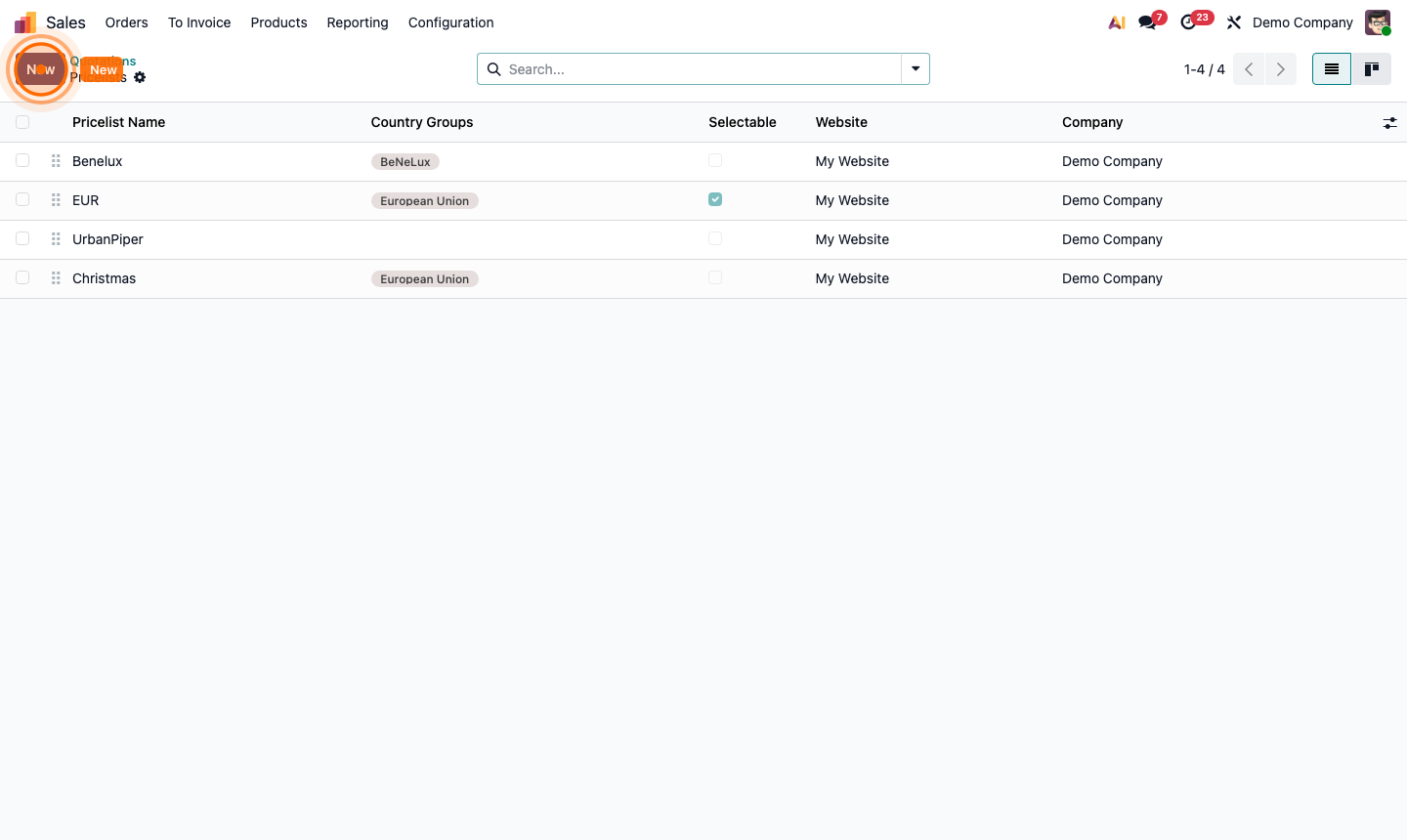
Step 1: Pricelists list showing default pricelist and any custom ones with currency and type

2

Create a Customer-Specific Pricelist

Click New on the Pricelists page.

  • Name — descriptive (e.g., “Wholesale – 20% Off”, “VIP Partners”, “Q1 Promo”)
  • Currency — can be a different currency for international customers
  • Company — leave blank for all companies, or restrict

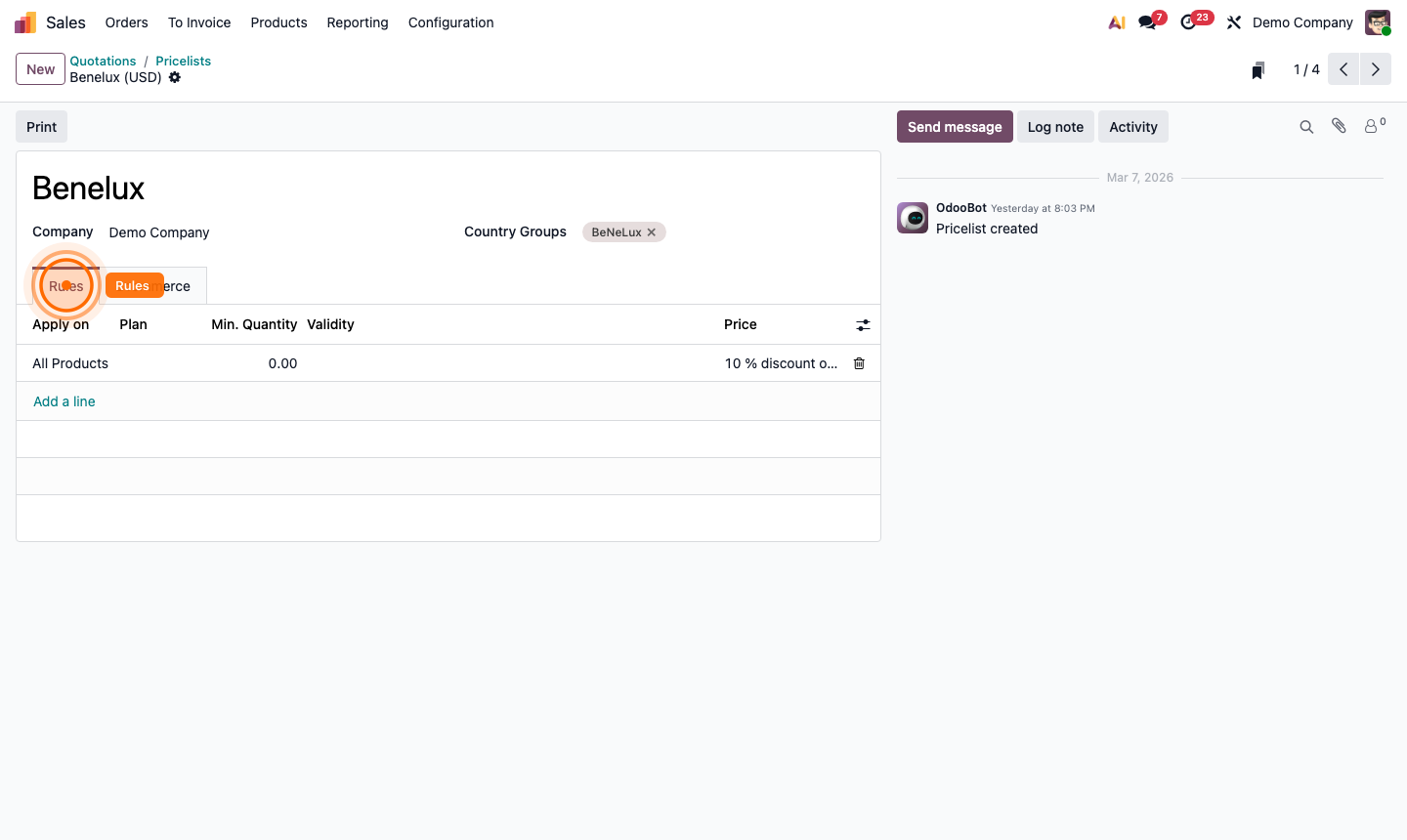
In the Rules tab, click Add a line:

  • Apply On — All Products, Product Category, or Specific Product
  • Computation — Fixed Price, Discount %, or Formula
  • Minimum Quantity — trigger this rule only for orders above a quantity (volume pricing)
  • Date Range — limit the rule to a promotional period

Add as many rules as needed. Rules are evaluated from top to bottom; the first matching rule wins.

Step 2: Pricelist form with rules tab showing product, discount percentage, and date range fields

3

Assign a Pricelist to a Customer

The cleanest way to apply pricing is at the customer level — it applies to every order automatically.

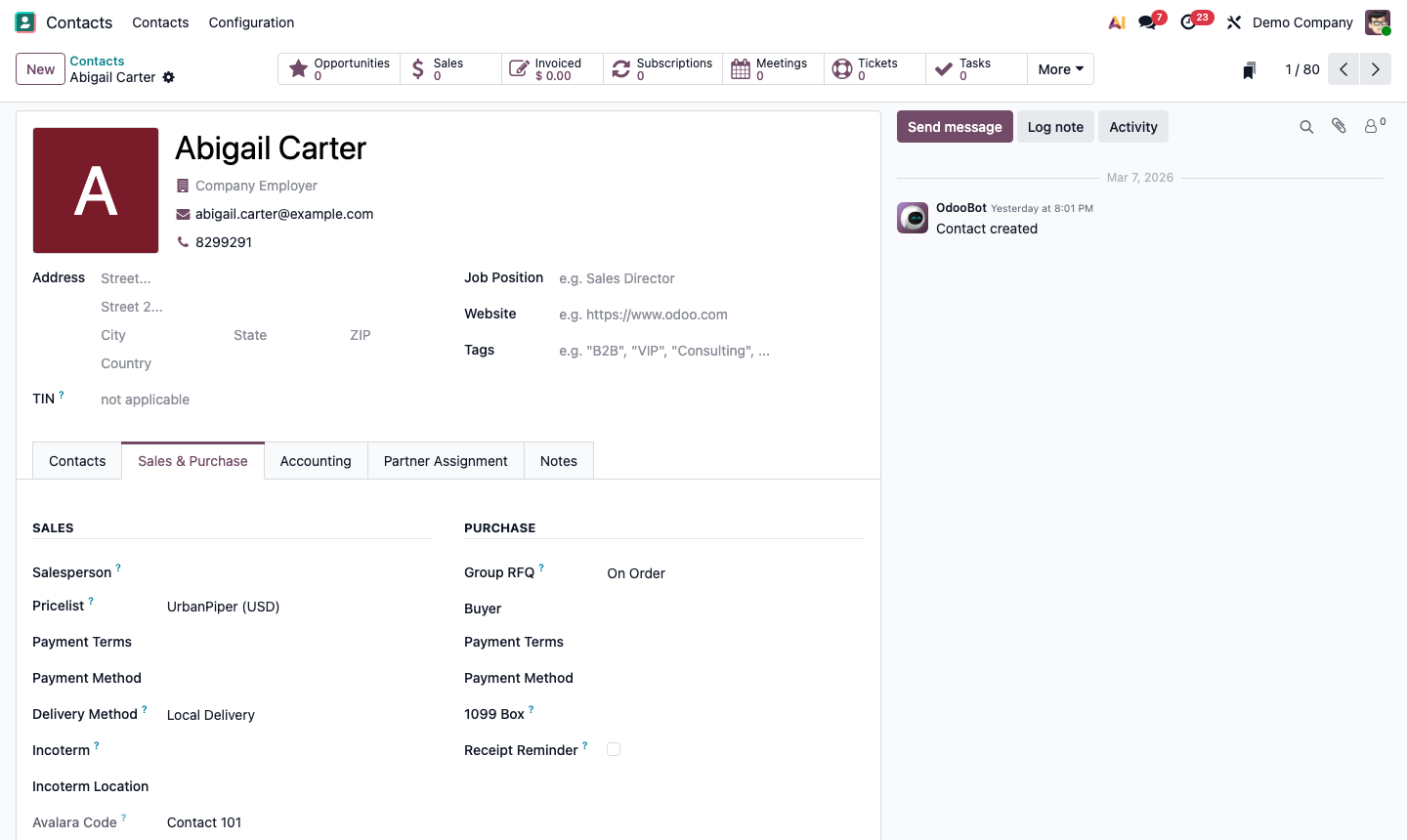
Open the customer’s contact record. Go to the Sales & Purchase tab. Set the Pricelist field.

Now every quotation created for this customer auto-selects their pricelist. The salesperson can still override it on individual orders.

For B2B scenarios, assign:

  • Standard customers → Public Pricelist
  • Wholesale accounts → Wholesale Pricelist
  • VIP partners → Partner Pricelist

Step 3: Customer contact Sales tab showing Pricelist assignment field

4

Apply Pricelists on Quotations

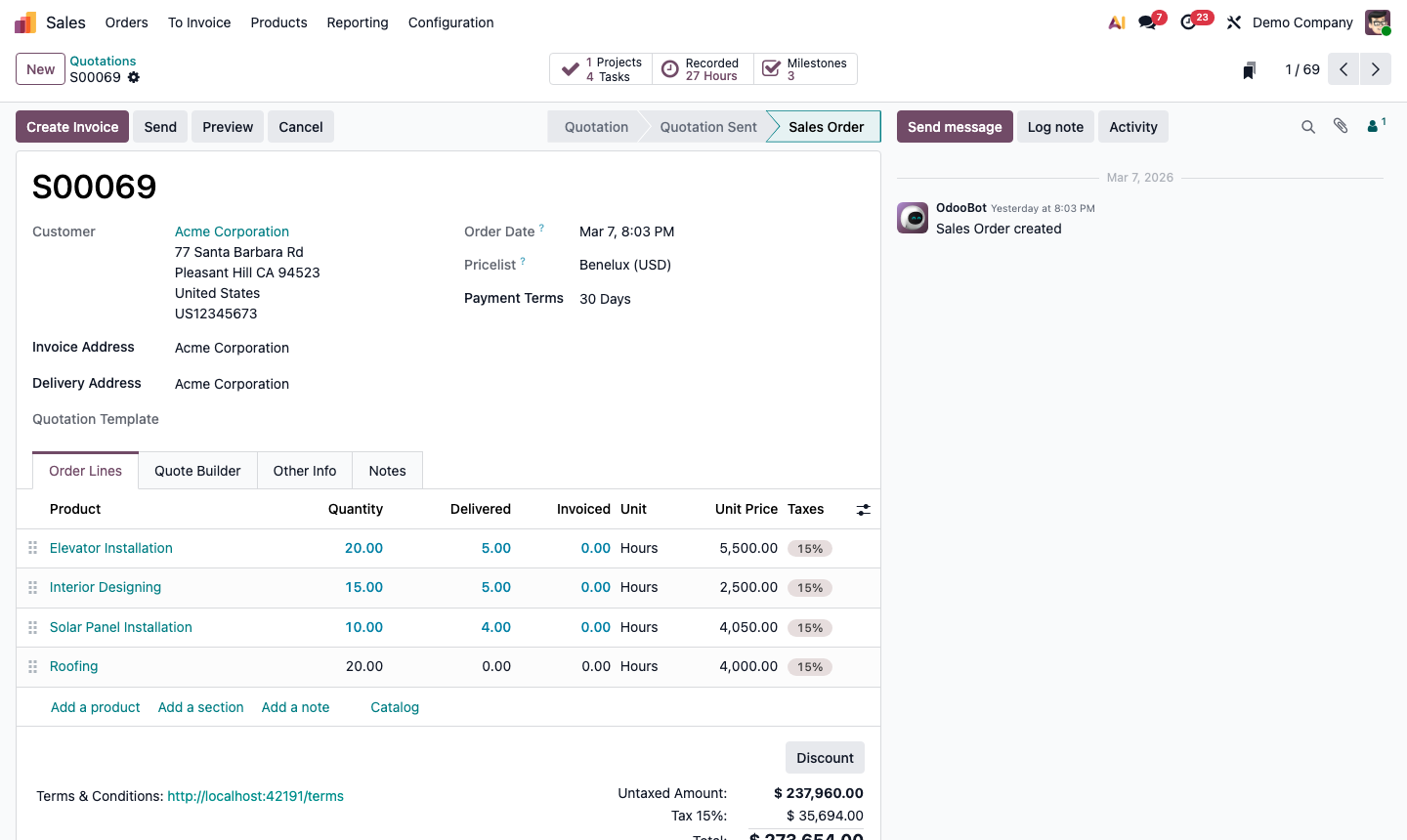
On any quotation, the Pricelist field appears in the header (if pricelists are enabled). Changing it instantly recalculates all line item prices.

When a product is added:

  • The Unit Price field auto-fills from the applicable pricelist rule
  • If discounts are enabled, a Discount (%) column shows the percentage reduction from list price

This lets customers see both the list price and their discount — professional and transparent.

Step 4: Quotation showing Pricelist field in header and discount column on order lines

5

Set Up Volume Pricing (Quantity Breaks)

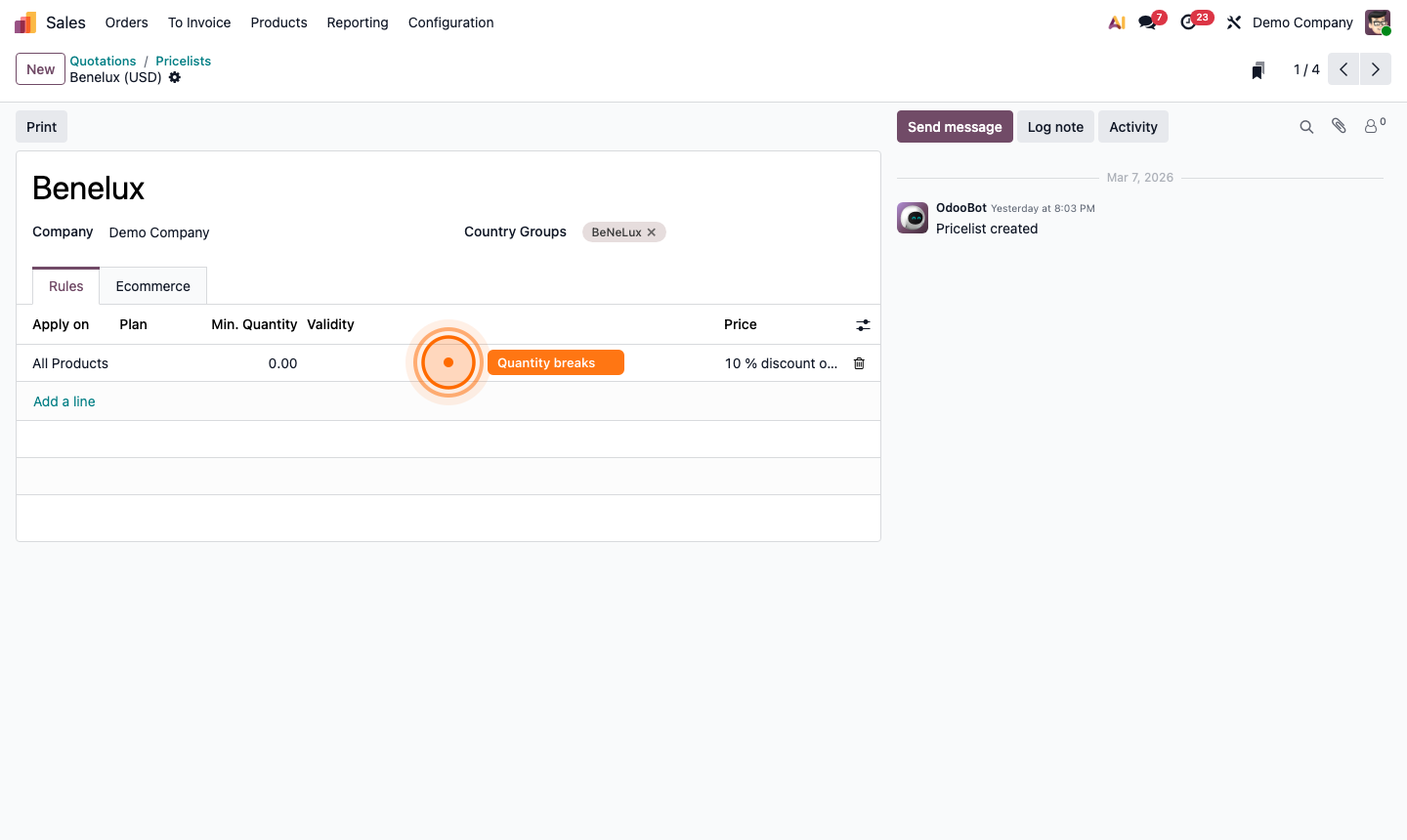
Use minimum quantity rules to automatically reduce prices at higher volumes.

Create a pricelist with multiple rules for the same product:

  • Qty ≥ 1: $100 (standard)
  • Qty ≥ 10: $90 (10% volume discount)
  • Qty ≥ 50: $80 (20% volume discount)

When a salesperson enters 15 units on a quotation, Odoo automatically applies the $90 rule.

This drives upsells — the order line shows “buy 5 more for a better price” if you configure the next tier in the description.

Step 5: Pricelist with quantity break rules showing three pricing tiers for the same product

6

Configure the Global Discount Policy

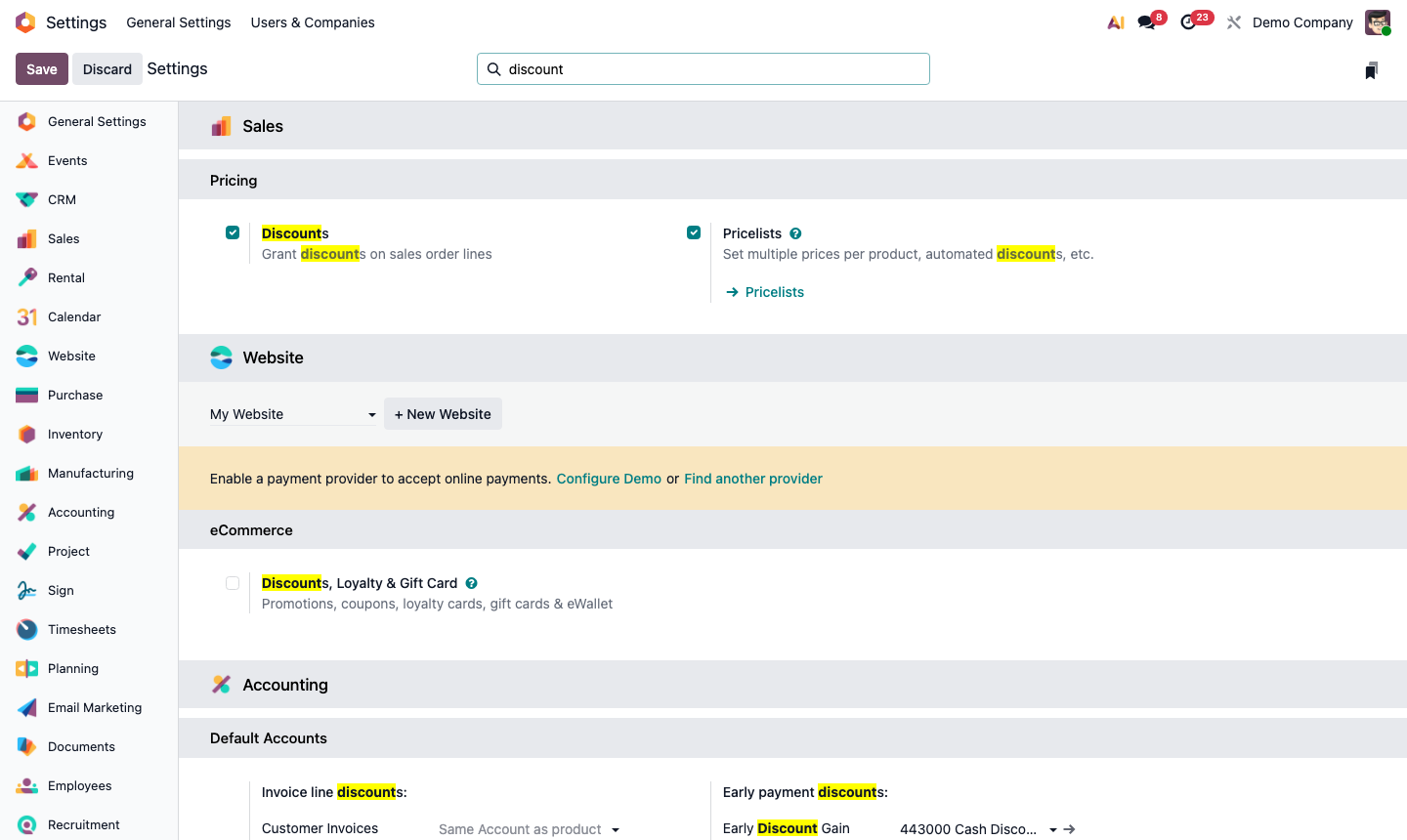
In Sales → Configuration → Settings, the Discount Policy setting controls how discounts are displayed:

  • Discount included in the price (default) — the customer sees only the final price, no visible discount
  • Show public price & discount to the customer — shows the list price crossed out and the discount percentage

The second option is better for customer-facing quotes where you want to highlight the deal they’re getting.

You can also override this per pricelist: open the pricelist and set Discount Policy individually.

Step 6: Sales settings showing Discount Policy option and pricelist discount display mode